Getting Started
This quickstart gets you to first value in a few minutes: connect a platform account, import scenarios (blueprints), validate them, and start monitoring.
Prerequisites
- A Flow Beacon account and access to your workspace
- A provider account you can authorize (e.g., Make.com)
1) Sign In and Open Dashboard
- Sign in to Flow Beacon.
- You should land on your Dashboard.
Need help? See Account Access.
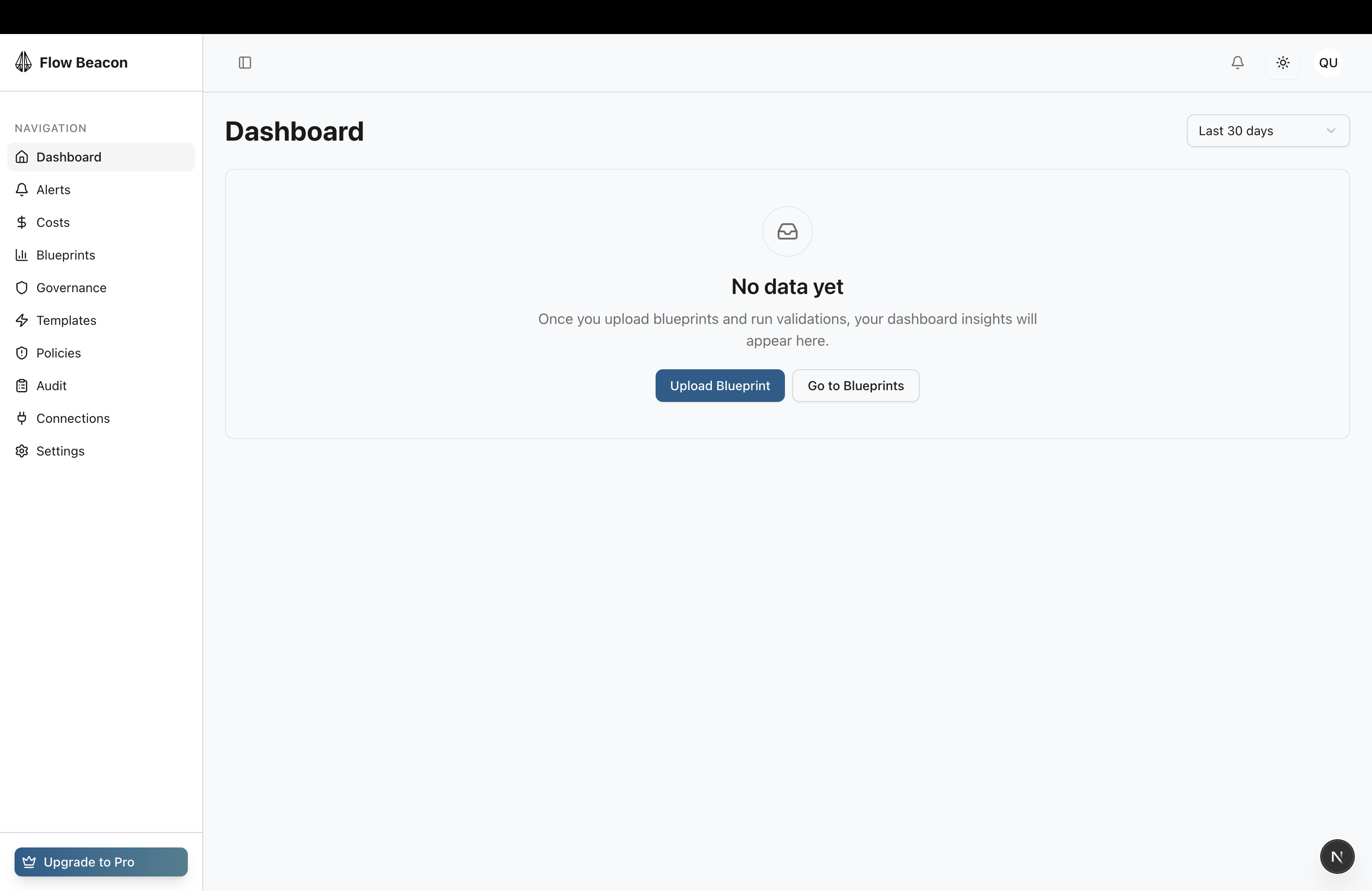
2) Connect a Platform Account
- Go to
Connections. - Click
Add Connectionand choose a provider. - Complete the secure OAuth flow and return to Flow Beacon.
- Confirm your connection shows as
Active.
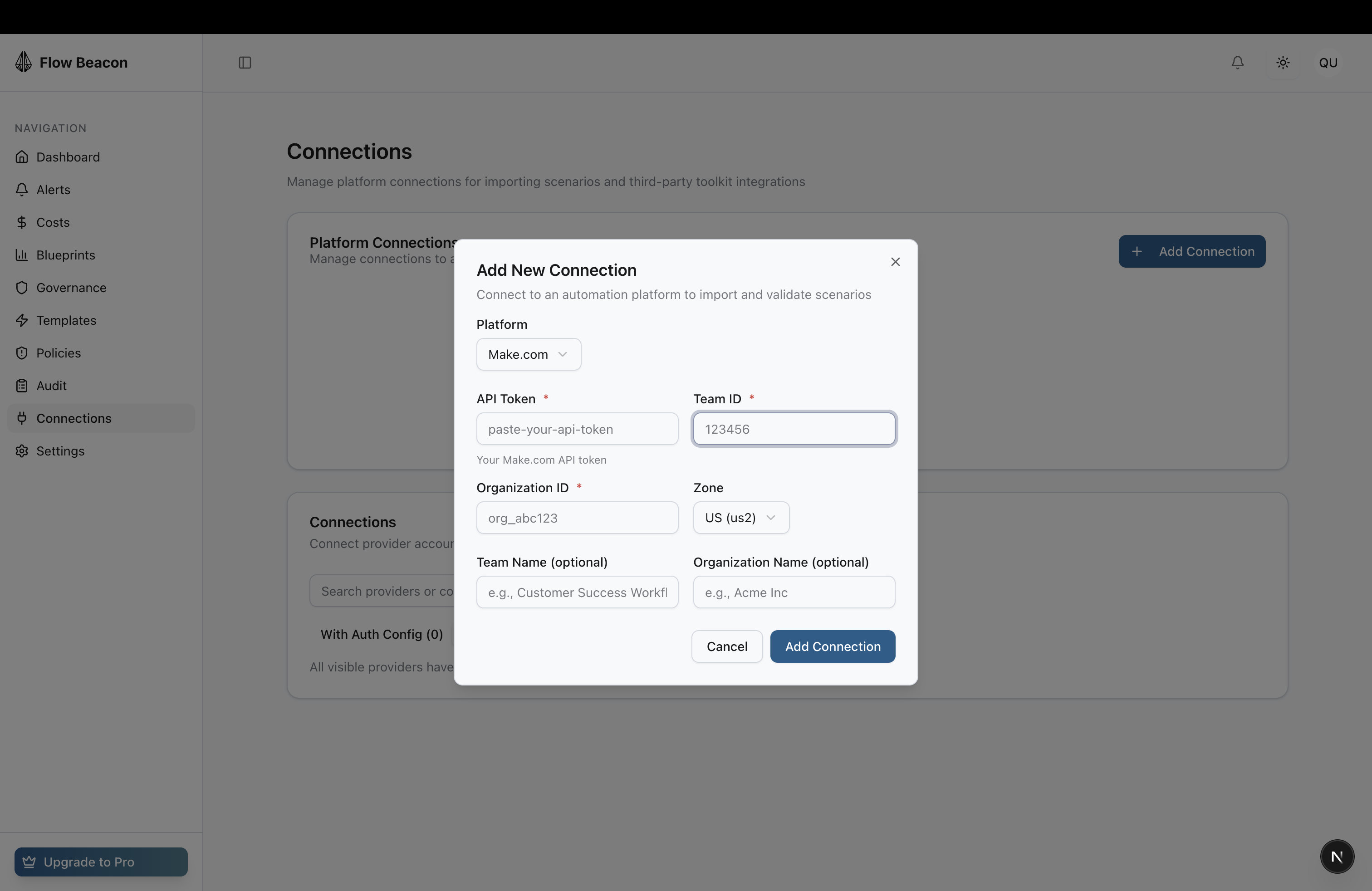
Make.com connections
If you’re connecting Make.com, you’ll need your API token, Team ID, Organization ID, and Zone. See the Make.com Credentials guide for step‑by‑step instructions.
3) Import Scenarios (Blueprints)
- From
Blueprints(orGovernance → Scenarios), clickImport. - Select your connection and pick scenarios to import.
- Click
Importand wait for confirmation.
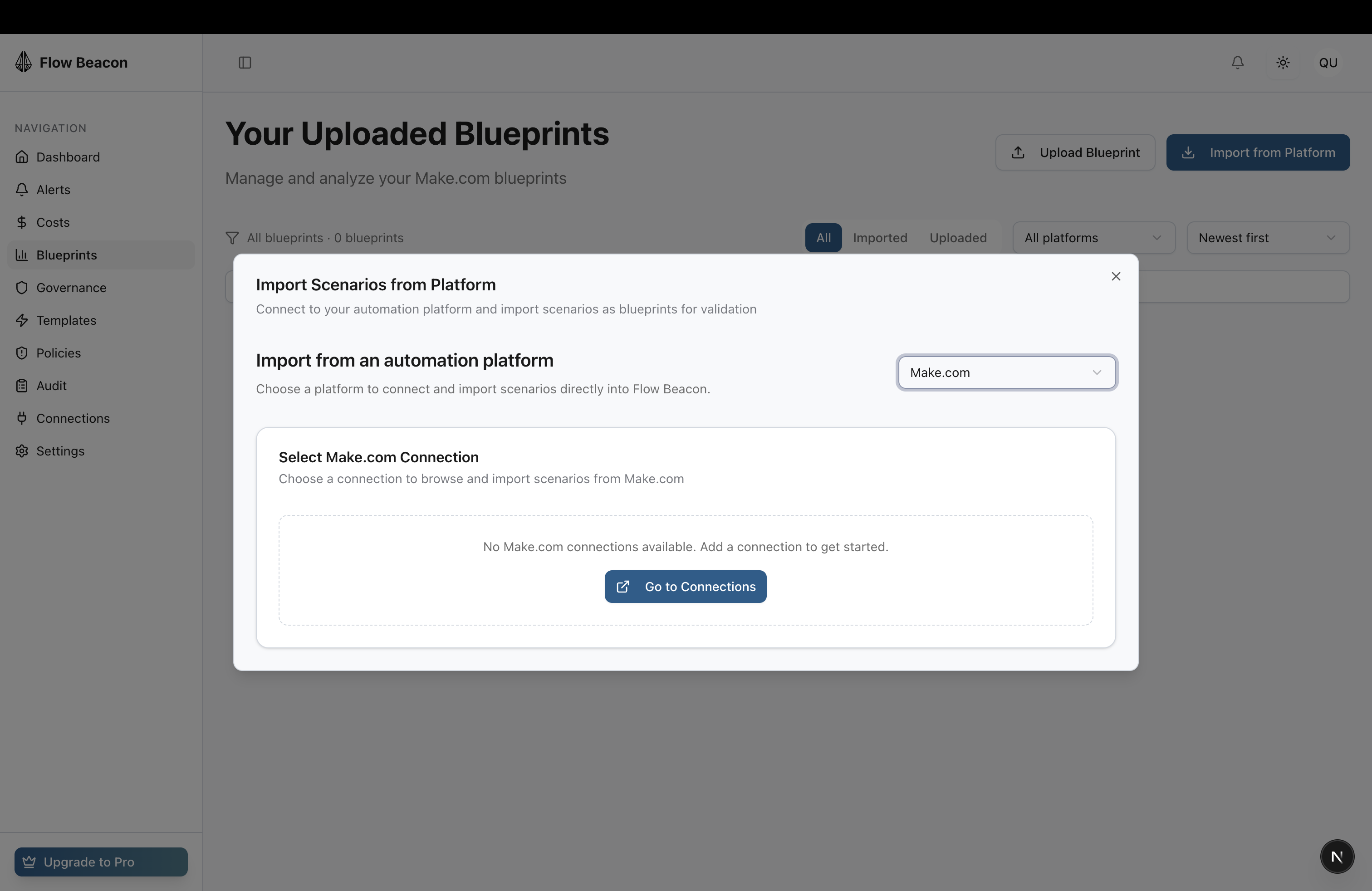
4) Validate and Fix
- Open a blueprint and run
Validate. - Review findings; apply suggested fixes where available or note best‑practice guidance.
- Re‑run validation until no critical issues remain.
5) Monitor Alerts and Costs
- Visit
Alertsto view incident‑level notifications and clear resolved items. - Visit
Coststo review recent usage.
You’re Done When…
- Your connection shows Active
- At least one scenario is imported and validated
- You can view Alerts and Costs without errors
Common Pitfalls
- Authorization fails: try an incognito window and confirm the correct provider account.
- No scenarios during import: verify the selected team/workspace on the provider.
- Empty Alerts: confirm recent activity on the connected platform.