Account Access (Sign In, Sign Up, Password Reset)
Need help signing in, creating an account, or resetting your password? This guide explains how to access Flow Beacon during our Closed Private Beta and after general availability.
Private Beta
We are currently in Closed Private Beta. New accounts are invite‑only and social sign‑in (e.g., Google) is temporarily disabled. When GA launches, additional providers will be enabled and documented here.
Sign Up (Invite Only)
- Open the invite email from your admin and click the secure link.
- Set your name and a strong password.
- Confirm your email if prompted, then sign in.
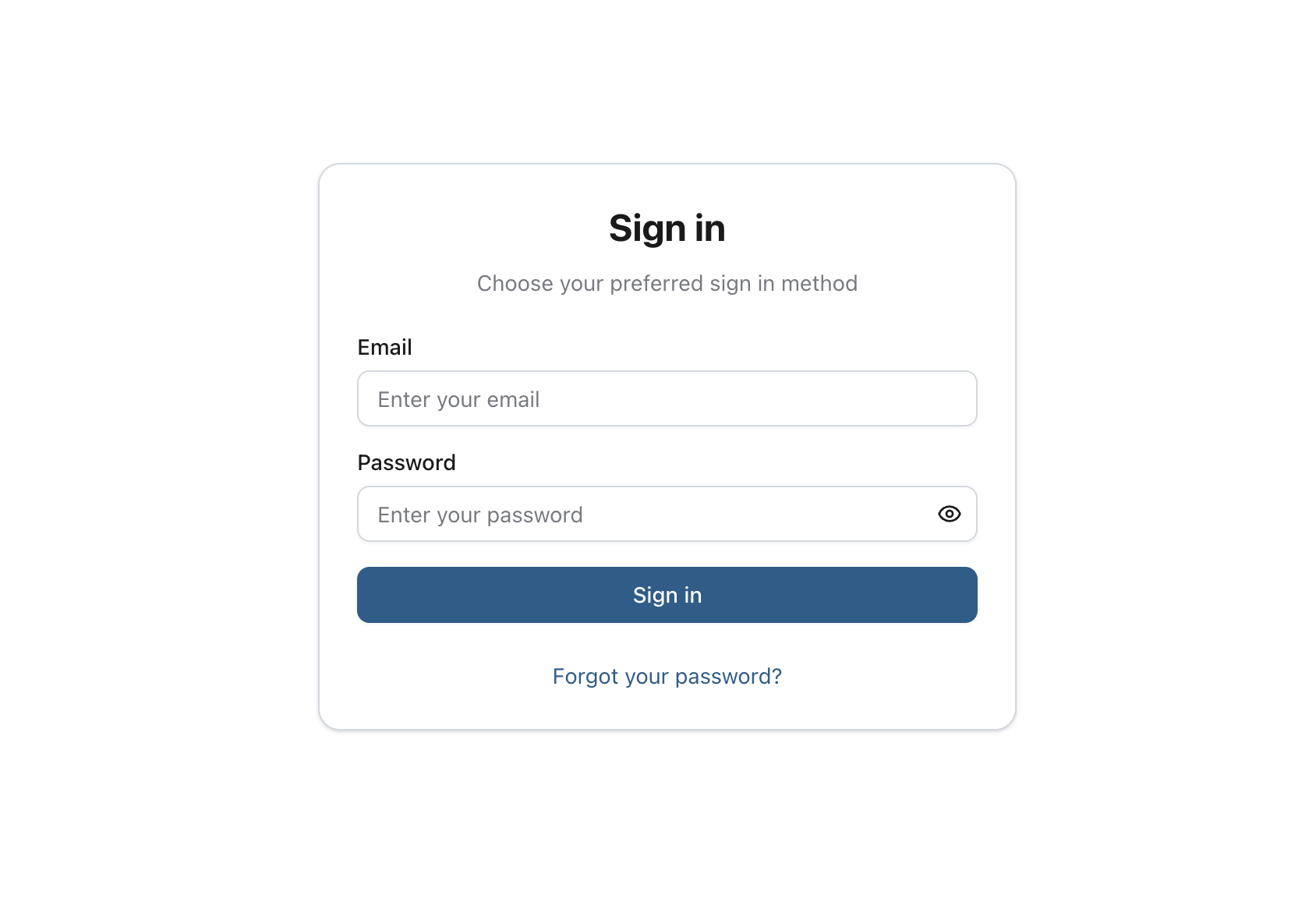
Sign In (Email + Password)
- Go to the Flow Beacon sign‑in page.
- Enter your email and password.
- Click
Sign in.
Forgot Password / Reset
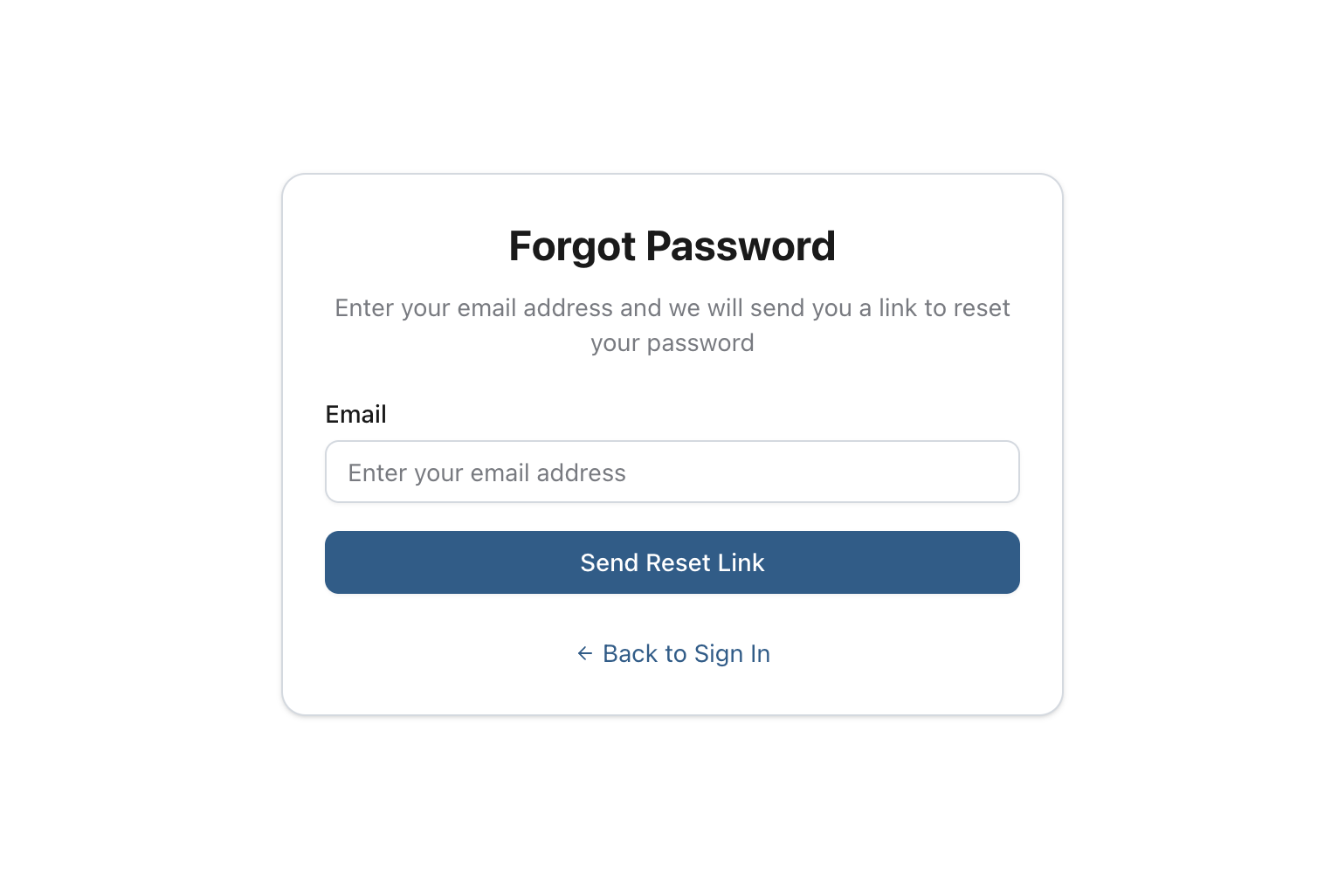
- On the sign‑in page, click
Forgot your password?. - Enter your email and submit.
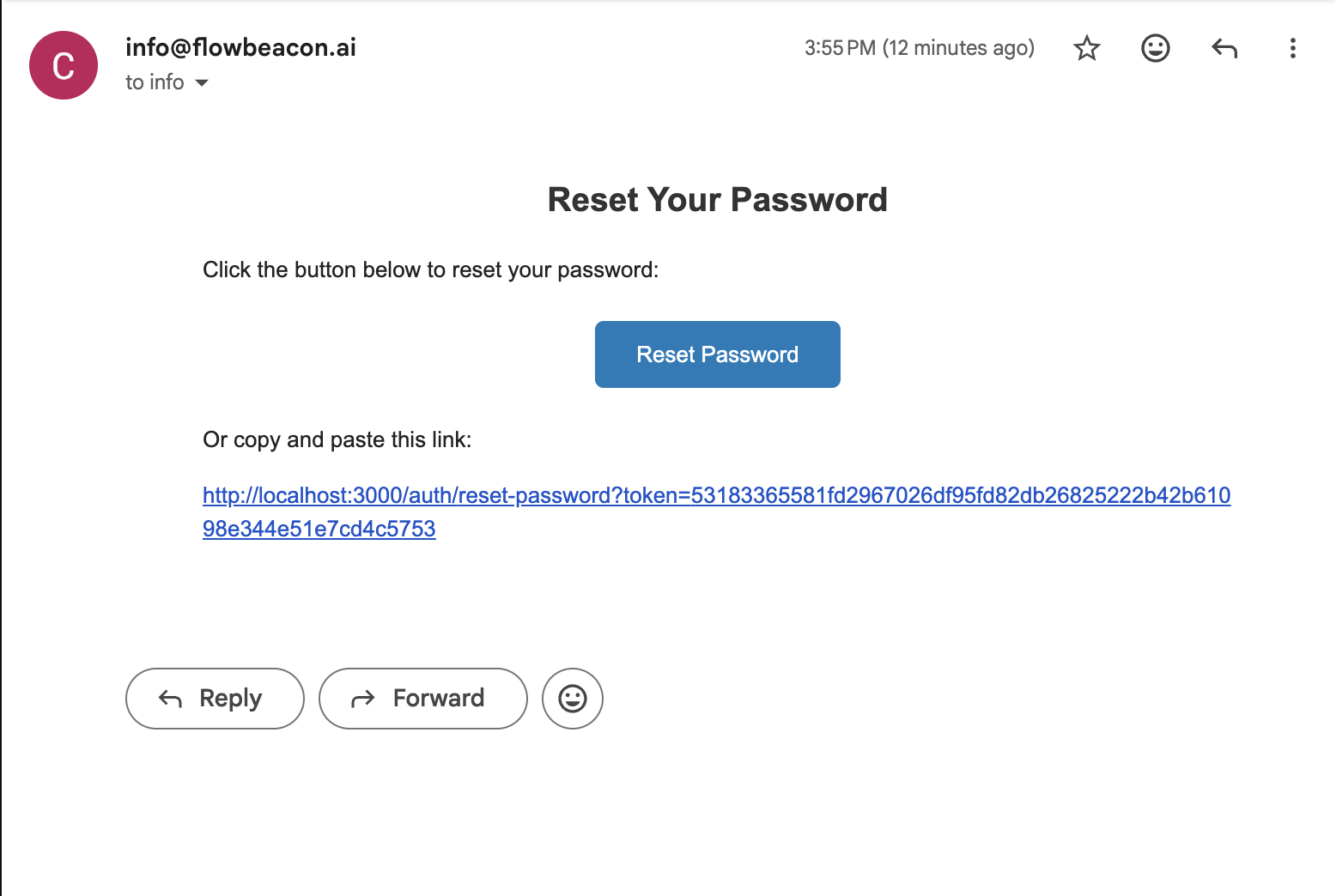
- Open the reset email and click the link.
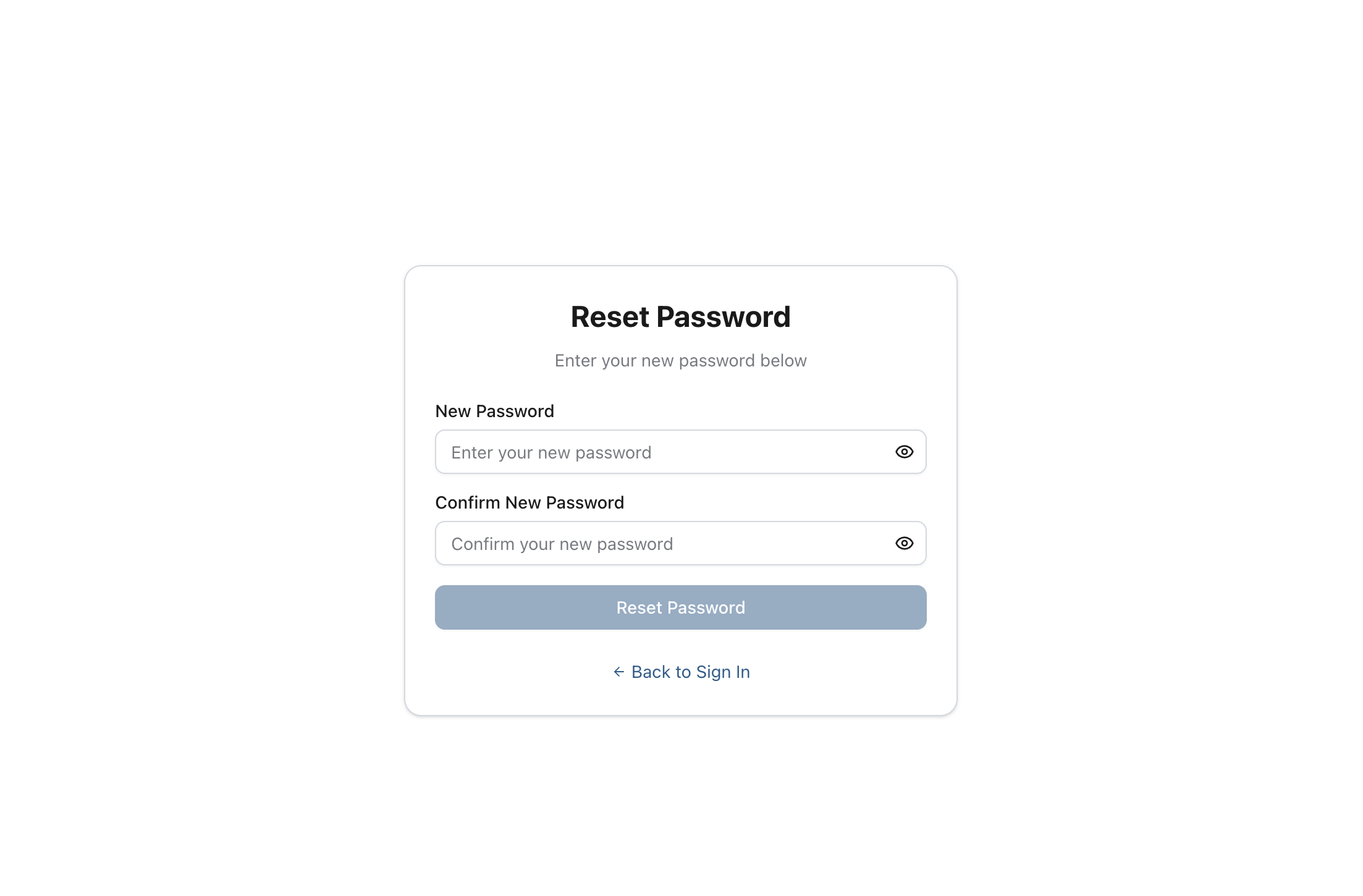
- Set a new password and sign in.
Reset Link Tips
- Links expire after a short time. If expired, request a new one.
- Use the same browser/device when possible and ensure the link opens on
flowbeacon.ai.
Coming Soon: Social Sign‑in
After Private Beta, we plan to enable sign‑in with popular providers (e.g., Google). When available, the sign‑in screen will show additional buttons. This page will be updated with exact steps per provider.
Troubleshooting
- No email received: check spam/junk; add our domain to your allowlist; request again after a few minutes.
- Invalid/expired link: request a new reset email or a fresh invite.
- Wrong workspace: ask your admin which email was invited and ensure you’re using that address.
- Still stuck: contact your workspace admin or reach out to support.