Manage Connections
Use Connections to securely link provider accounts (e.g., Make.com) to Flow Beacon. Once connected, you can import scenarios and monitor activity.
Concepts
- Connection: a linked provider account authorized to share data with Flow Beacon.
- Status:
Active,Needs Attention, orDisconnected.
Prerequisites
- A provider account with permission to authorize apps for your workspace/team.
Add a Connection
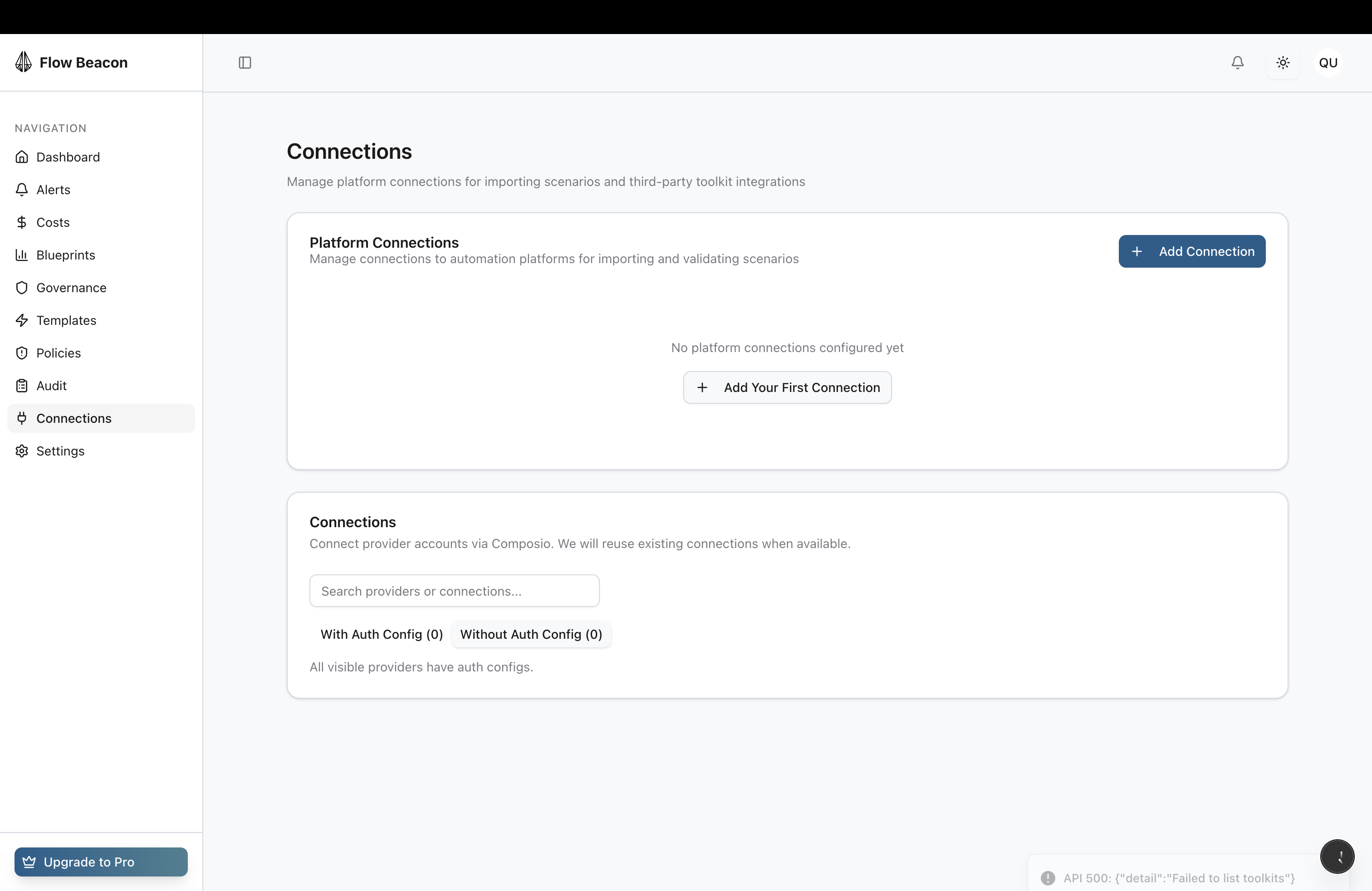
- Go to
Connections. - Click
Add Connection. - Select a provider.
- Complete the secure OAuth flow in the provider’s window and return to Flow Beacon.
- Confirm the new connection appears with status
Active.
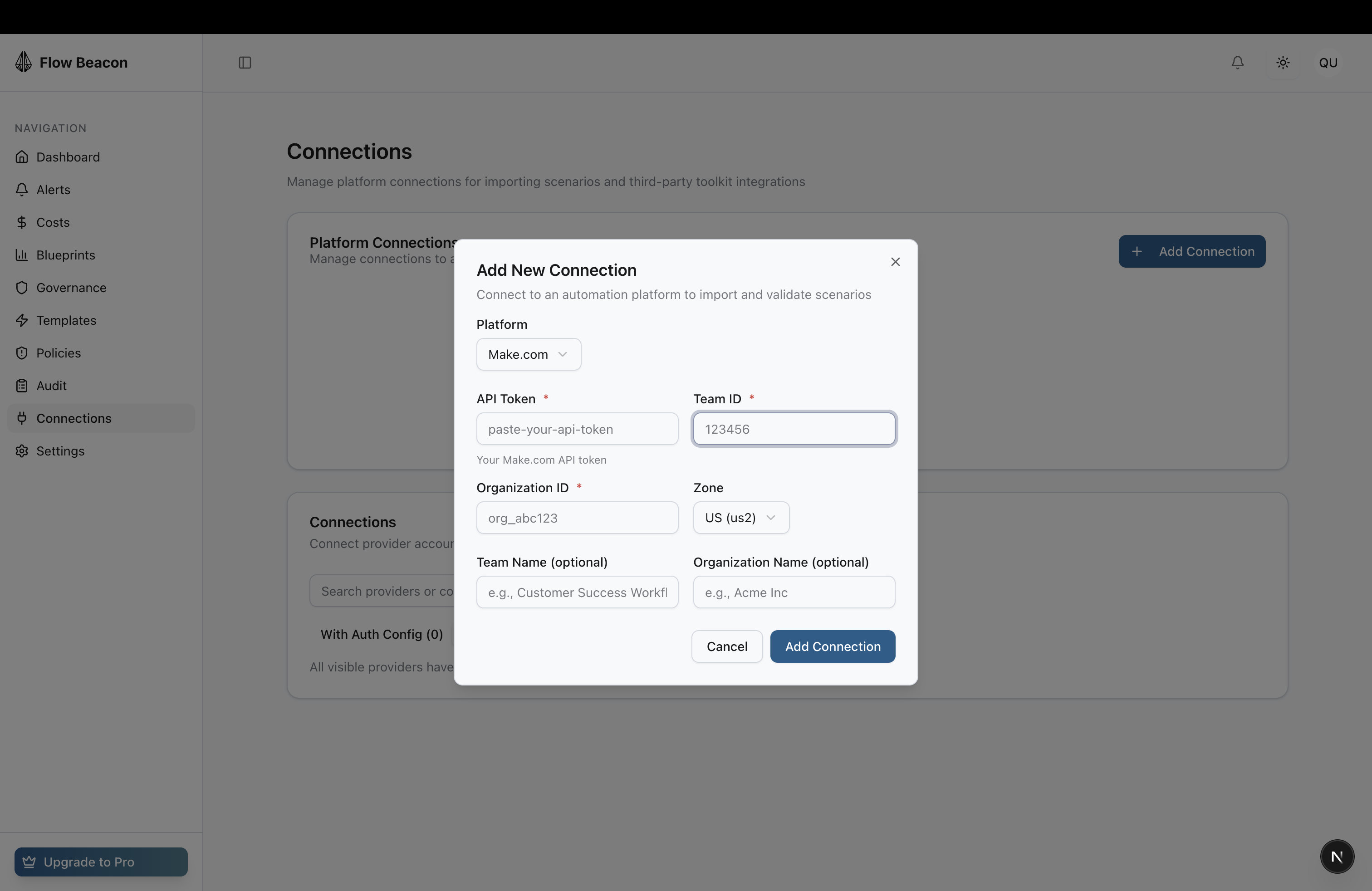
Make.com values
For Make.com connections, follow the Make.com Credentials guide to locate your API Token, Team ID, Organization ID, and Zone.
Validation
If the connection is active, you can list scenarios during import.
Refresh or Re‑link a Connection
- In
Connections, locate the entry. - Choose
RefreshorRe‑linkif prompted to re‑authorize. - Complete the flow and verify status returns to
Active.
Remove a Connection
- From the connection’s menu, choose
Remove. - Confirm the removal. This does not delete data on the provider.
Troubleshooting
- OAuth pop‑up blocked: allow pop‑ups for your browser session.
- Wrong provider account: sign out from the provider in another tab, then try again.
- No visible teams/workspaces to select: ensure your provider account has access to the target workspace.
FAQ
- Can I connect multiple accounts? Yes, connect more than one provider account if needed.
- Do I need admin on the provider? You need sufficient permission to authorize the app for the relevant workspace/team.