Import Scenarios (Blueprints)
Import scenarios (also referred to as blueprints) from your connected provider to run validations and governance checks in Flow Beacon.
Prerequisites
- An
Activeconnection inConnections.
Import from a Connection
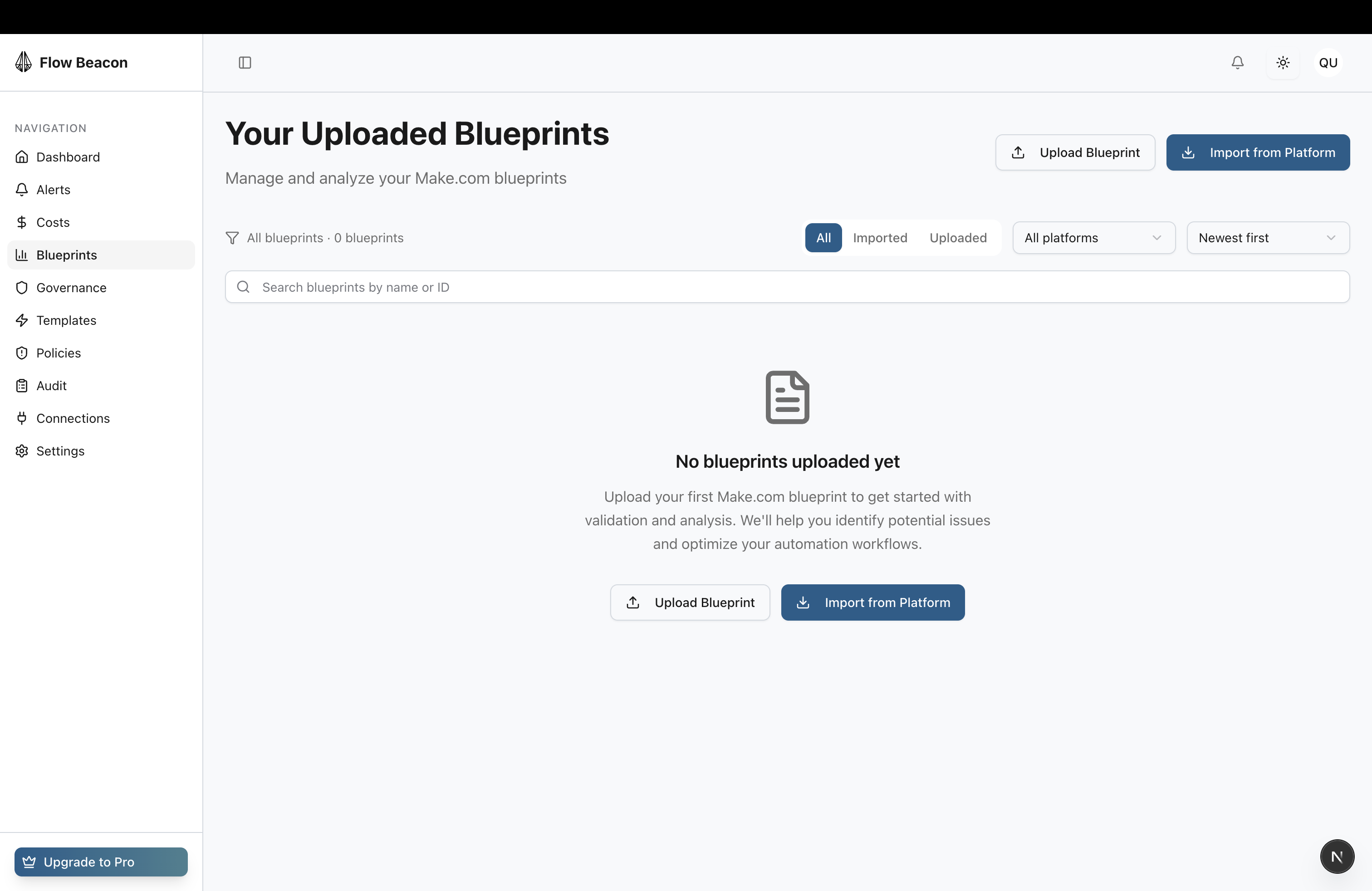
- Go to
Blueprints(orGovernance → Scenarios). - Click
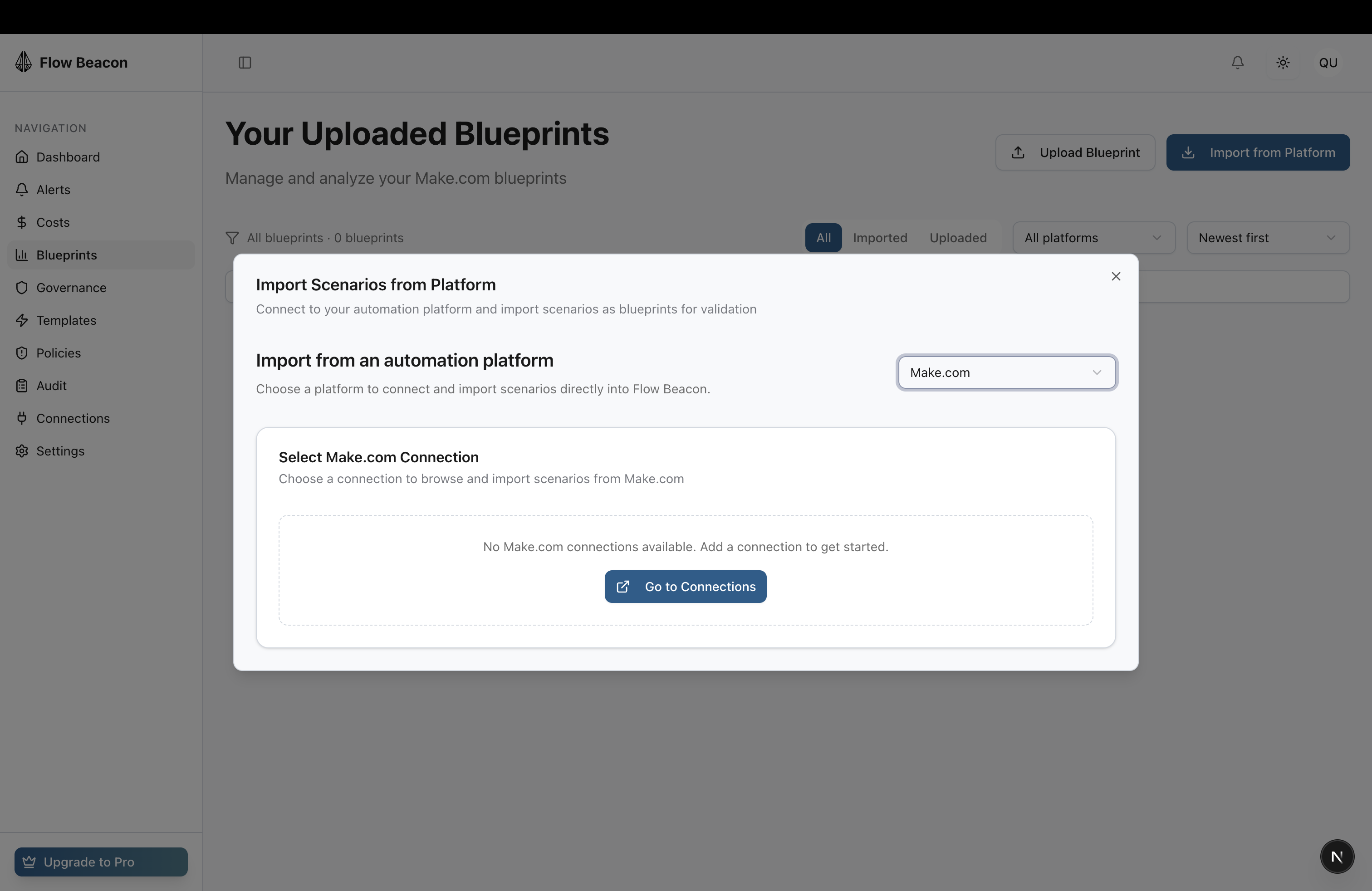
Import. - Select a connection. If prompted, choose the provider team/workspace.
- Search or filter, then select one or more scenarios.
- Click
Importand wait for confirmation. - The imported items appear in your list with an initial status.
Upload a Blueprint File (Alternative)
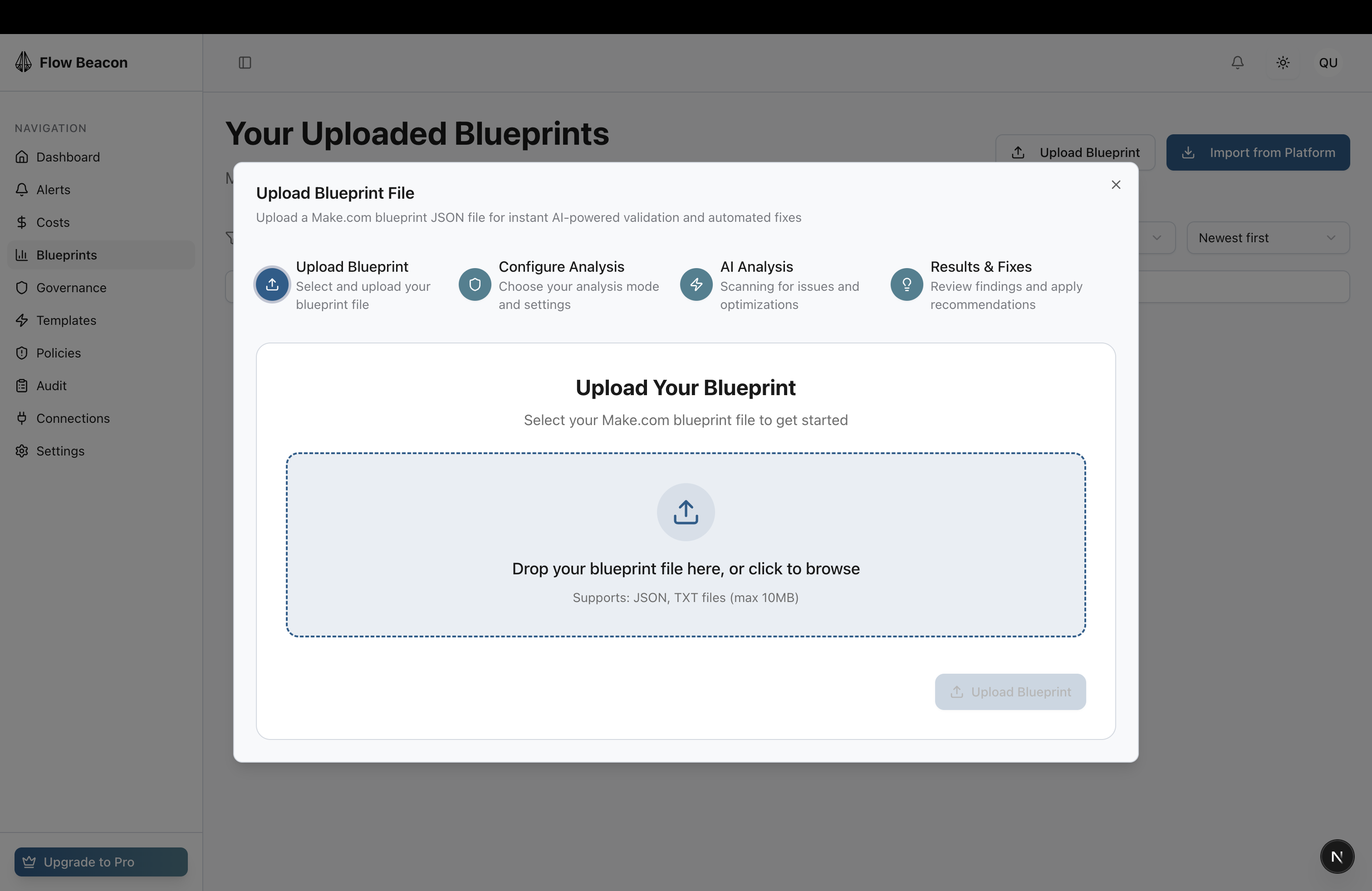
- Click
Upload Blueprint. - Drag and drop your Make.com blueprint JSON or browse to select it.
- Confirm upload and proceed to validation.
Verify the Import
- The scenario(s) appear in the list with names matching the provider.
- Opening a scenario shows details and actions like
Validate.
Re‑import or Sync Changes
- From the scenario list, choose
Refreshor re‑runImportto pull updated definitions. - Confirm timestamps update after sync.
Troubleshooting
- Empty list: confirm your provider connection is
Activeand the selected workspace contains scenarios. - Missing scenario: ensure you have access and the scenario isn’t private/restricted at the provider.
- Import error: try again in a new browser session and confirm the connection does not require re‑authorization.
Related
- Manage Connections
- Validate and Fix